

Ubuntu’s AI-powered dictation tool Myna is available for testing , so if you’re eager to give it ago, you can do so – I show how in this post.
The Myna orchestrator snap and a set of automatic speech recognition (ASR) AI models are on the Snap Store, albeit in experimental status, and made a new desktop Myna Settings tool available to install from a PPA.
Ubuntu 26.10 ships with one component preinstalled as the gnome-shell-ubuntu-extensions package has a GNOME Shell extension to trigger the on-screen HUD when the Myna local AI speech-to-text tech is listening or transcribing.
All the pieces needed to use Myna on Ubuntu 24.04 LTS through 26.10 are waiting to be tested – and the feature has changed quite a bit since I previewed it back in August.
Keep in mind that Myna is not yet stable so, if opting-in to try it, don’t expect things to work flawlessly.
How to install Myna on Ubuntu
To test Myna on Ubuntu 24.04 LTS, 26.04 LTS or Ubuntu 26.10 you need:
myna-configdesktop app from a PPAmynasnap from the Snap Store-
myna-*AI model from the Snap Store
If you’re on Ubuntu 26.10 you also have:
- Myna Shell extension (preinstalled)
The Myna Shell extension (which triggers the on-screen HUD) is only packaged for GNOME 51 and 26.10 at the time of writing, though there are plans to add it to the GNOME Extensions site for earlier releases.
If you’re on Ubuntu 24.04 or 26.04 desktop notifications are used to convey status instead.
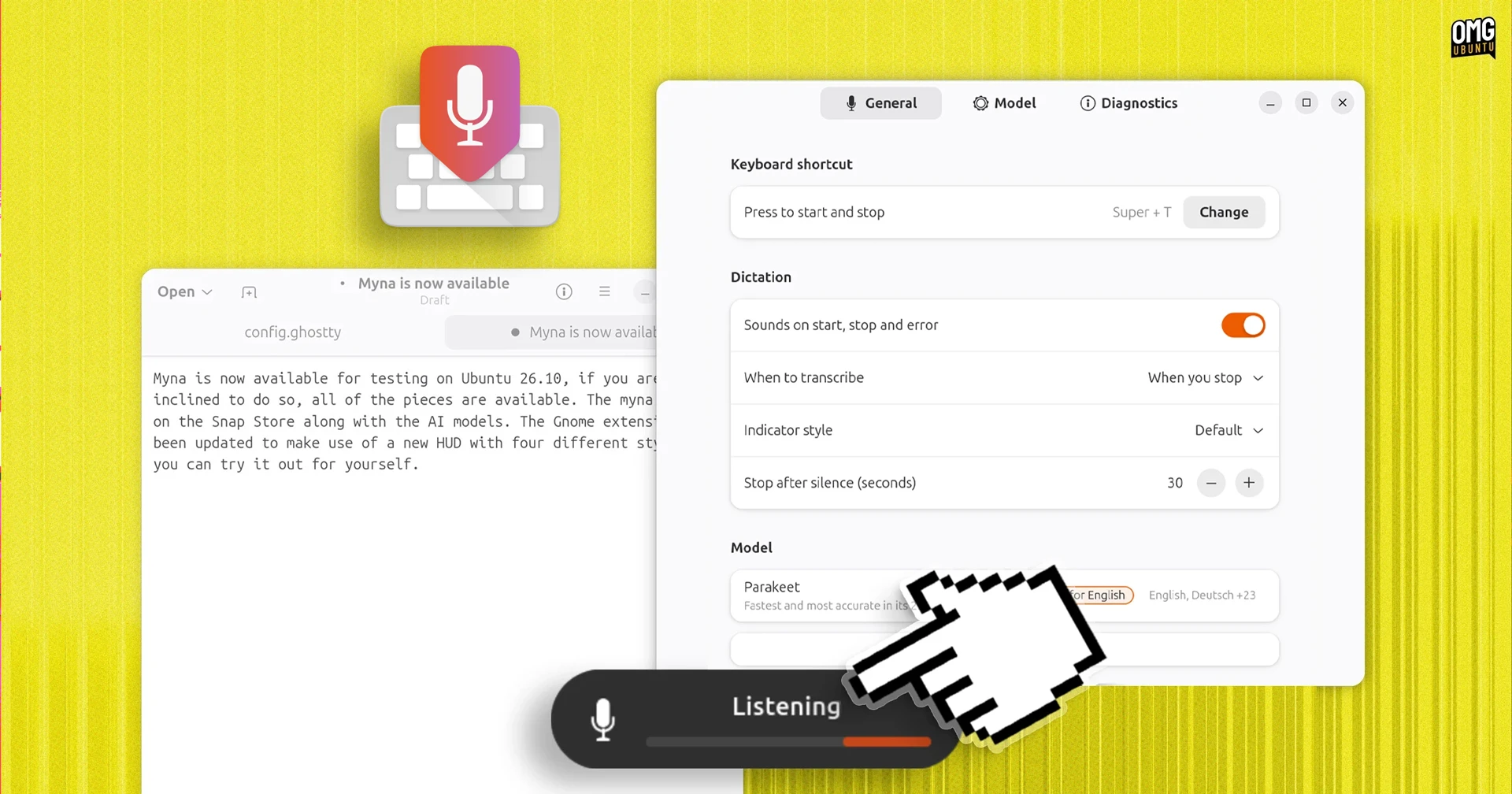
The on-screen HUD also only appear after pressing the trigger key to activate Myna, when listening or transcribing, or conveying error states (like ‘background noise is high’ or ‘focus lost’).

There are different visual styles available for the HUD: default (a plain bar using the system accent colour); vumeter (think volume) and ribbon (but as animated as the original one, alas).
Update: the latest update to Myna Settings now only includes 2 options: Default and Vumeter.
Installing the Myna Settings desktop app
Install the Myna Settings app by adding the Canonical Desktop Team PPA for Myna, which provides pre-built packages for Ubuntu 24.04, 26.04 and 26.10:
sudo add-apt-repository ppa:canonical-desktop-team/myna
sudo apt install myna-config
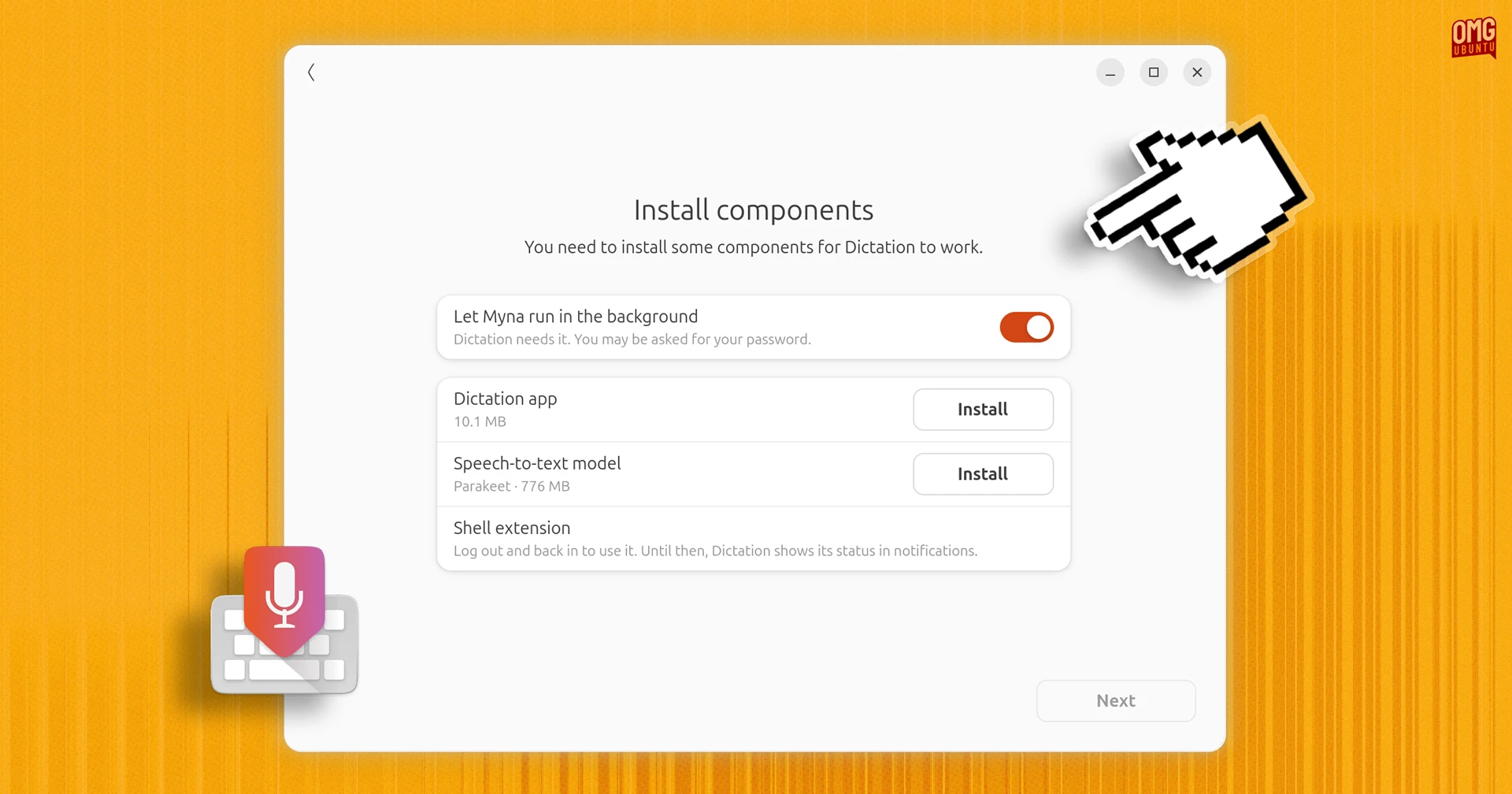
You can then launch the app and follow the steps shown in the wizard as it walks through the process of enabling the relevant permissions and installing the components needed.
I cover the steps manually below.
Installing the Myna client snap
Enable an experimental snap feature Myna requires before it will install:
sudo snap set system experimental.user-daemons=true
Install the Myna speech-to-text client from the Snap store:
sudo snap install myna --edge
Installing a text-to-speech AI model snap
Finally, to tie it all together, you’ll need the “brains” of the operation: an AI model which will actually transcribe your audio to typed text.
The Myna Settings (myna-confg) app has a first-run wizard to install the various components, and will suggest a model that’s suitable for your hardware and locale.
You’ll can also install your preferred speech recognition model from the Snap Store via the command-line – but which one should you choose?
Whisper, Parakeet and Funasr are the AI models on the Snap Store. The models run entirely locally, on your device, but aren’t small. You’ll need 1-2GB of free disk space1, depending on the one you choose.
I tested two. Parakeet I found better at accuracy (even spelling my surname correctly, which most don’t), but Whisper seemed faster, if prone to homophone errors.
Install Parakeet, NVIDIA’s fast, open-weight ASR model supporting 25 languages and punctuation:
sudo snap install myna-parakeet --edge
Or install Whisper, OpenAI’s multilingual, open-source model:
sudo snap install myna-whisper --edge
Or install FunASR, developed by Alibaba:
sudo snap install myna-funasr --edge
Now, open Myna Settings and you’ll see a variety of options presented:

You can, via the Myna Settings tool, set a model size (the number of parameters it uses) to favour speed or accuracy: smaller variants process audio faster on low-end hardware, while larger ones reduce transcription errors and handle tricky words better.
Checking Myna works
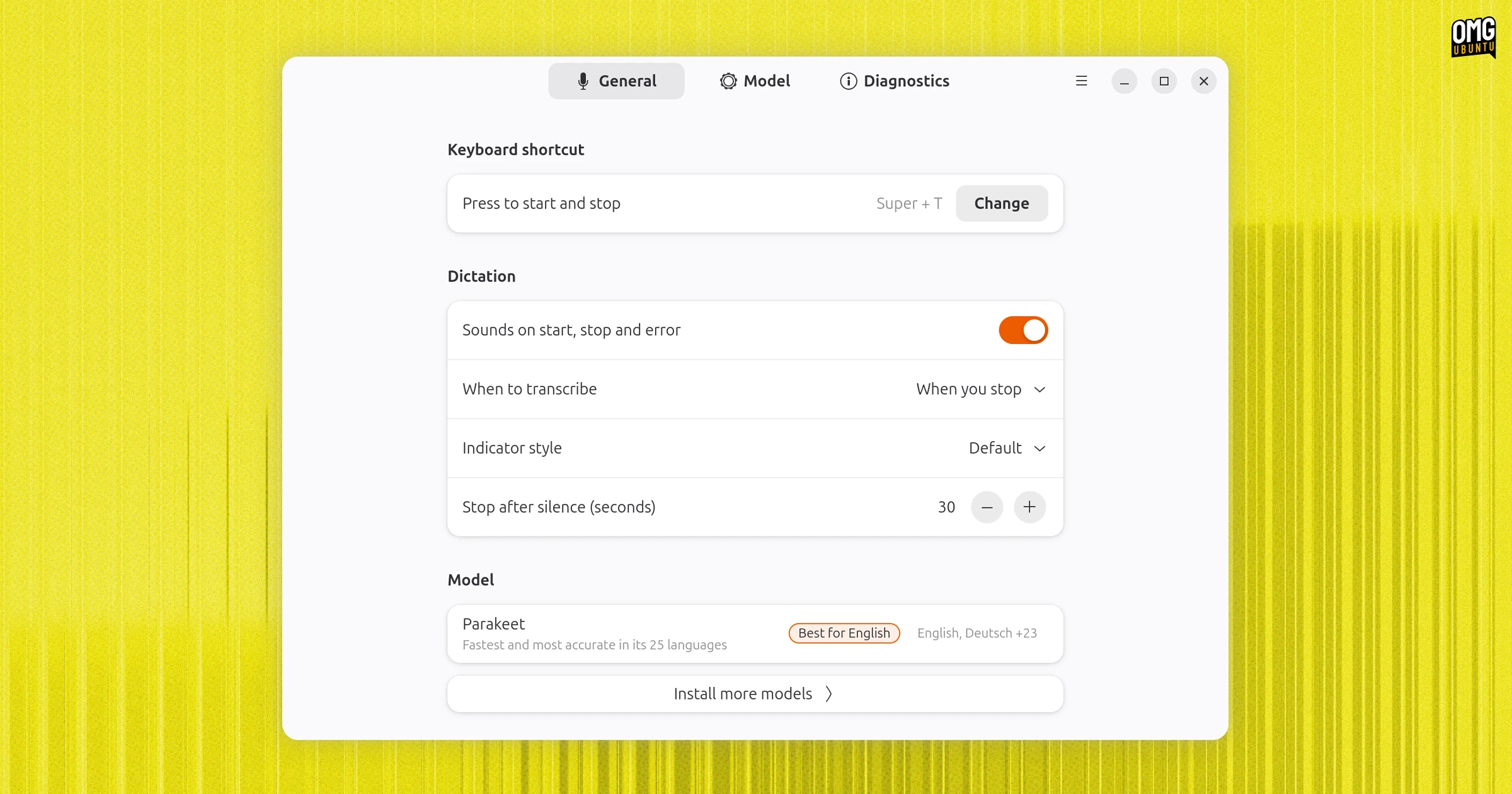
With everything in place, you can go ahead and test. First thing: make sure your microphone is enabled and working (check in Settings > Sound > Input). You then need to assigned a hotkey shortcut in the settings app2 which you will press to activate the feature.
When ready, open an app and focus a text field (I tend to use Text Editor), and press your hotkey.
When activated, the Myna HUD will appear on the desktop (26.10) or in a notification (26.04). Begin to talk and, if Myna says “listening”, continue rambling until you’re done. Press the same hotkey to transcribe your spoken words in to text that will appear in the focused app.
If you click out of the text field you began dictating into (or another app opens and steals focus) the HUD will say “focus lost”. You’ll need to repeat the process again.
Is Myna any good?
Myna is a boon to Ubuntu’s accessibility, for sure. Offline AI-powered dictation that’s more accurate than what’s previously been available.
Whether dictation proves popular beyond that, in day-to-day usage, is an open question. Offline speech recognition has shipped on smartphones and smartwatch for years, but most people still type their WhatsApp messages, e-mails and (welp) ChatGPT prompts.
Dictation is remains best suited to longer-form text entry than, say, barking “Firefox” at the App Picker. Myna can lose focus easily (an app opens, you press a button, you mouse away), and thus lose any “spiel” it was in the middle of processing.
It’s also optional; it only “listens” when you press a button, and recorded clips never leave your device nor get stored on it. It also can’t be triggered with a “hey myna” – not yet anyway.
Ubuntu didn’t have any of this before Myna, so it’s great to see Canonical experimenting. Myna is even being developed as a desktop-agnostic tech, even if this first pass focuses on a GNOME/Wayland/Mutter stack.
- Snap is configured to keep one “good” backup of everything you install. When the AI model is updated the old one stays behind, thus each snap uses twice the amount of space you may think. ↩︎
- On one of my laptops Myna defaults to super + j but on another it uses super + t. You can see/change it in the Myna Settings app. ↩︎