

Ubuntu dropped the Startup Applications tool in 2025, but you can still make a script or command auto-run at login – it’s just a more involved now there’s no fancy GUI to do it.
Startup Applications is no longer included in Ubuntu because newer versions of the GNOME desktop make it easier to set apps to open at login. You open Settings, go to Applications, click on the app you want and slide its Autostart toggle on.
But the new method only works for installed application. It doesn’t provide an equally user-friendly way to male a custom command or script run at login (something most users don’t need to do, admittedly).
If what if want to—bad examples klaxon—make Firefox open in private mode and load a specific website when you login, or run a custom script with a delay that triggers a remote sync operation, or, or, or—you get the idea; the possibilities are myriad.
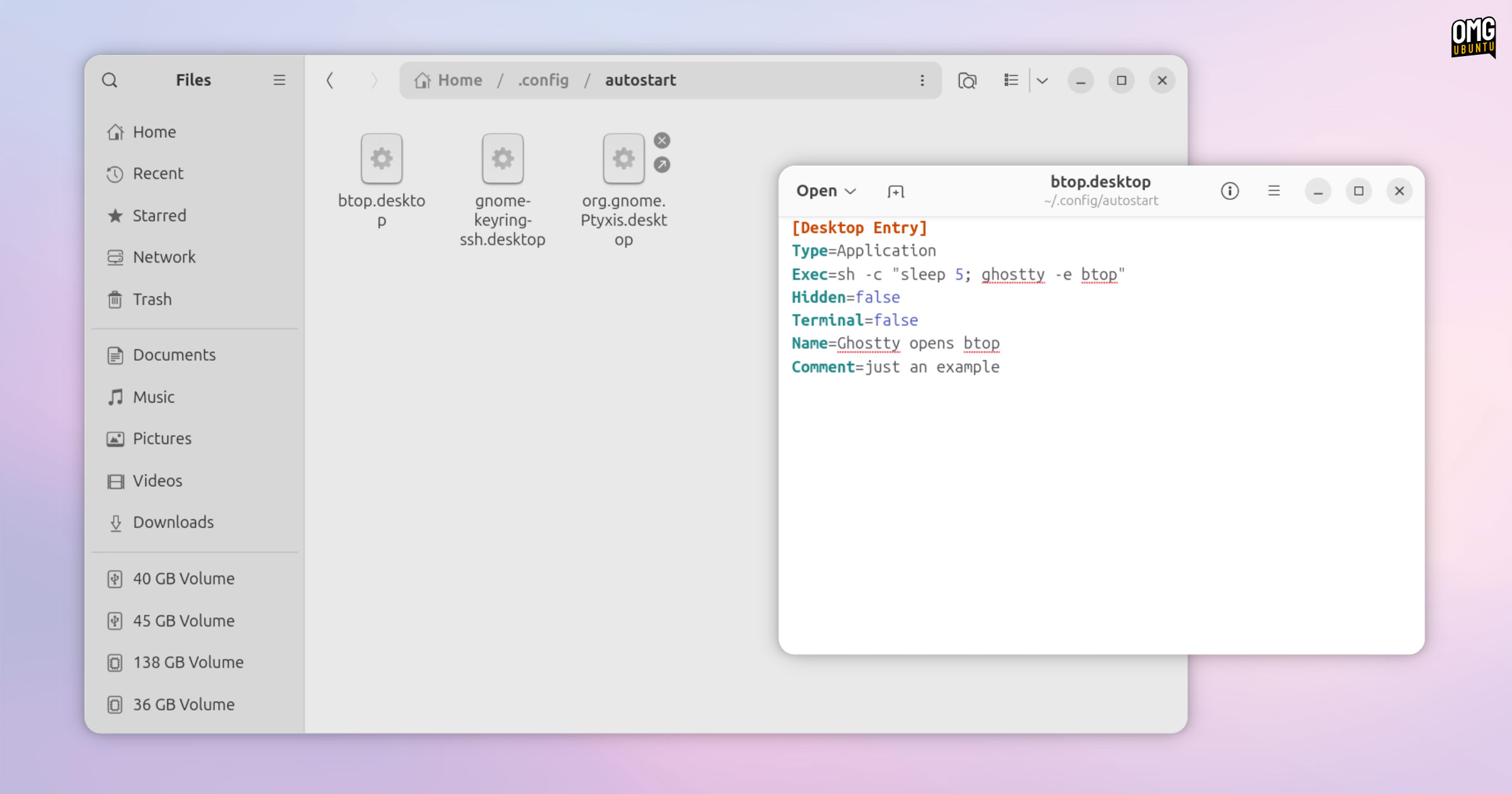
The solution is to put a .desktop file in ~/.config/autostart (create this folder if it doesn’t exist). Any .desktop launchers placed here will run at login. For scripts and bespoke commands this does require you to create that .desktop file – but that’s not hard.
All you need is a text editor and some idea of the command or script you want to run.
How to Run Commands at Login in Ubuntu
All of what follows can be done using a command line or a GUI tool, e.g., the Nautilus file manager and a text editor, or nano and in the right locations. You do not need to install any third-party apps.
If you do use the Nautilus file manager, be sure to press ctrl + h to show hidden files and folders (hidden icons appear as slightly faded compared to non-hidden items, making it easy to tell when it’s active – assuming the rows of dot files doesn’t).
Step 1: Find the Autostart Directory
Go to your home folder and check that the ~/.config/autostart directory exists. This should be present on Ubuntu (as it contains a launcher for the GNOME login keyring). If it’s present you can continue to step 2.
Don’t see it? You can create it yourself using your file manager. In your Home folder find the .config directory and enter it. Inside, right-click in an empty part and create a new folder called autostart (all lower case).
You can do it in a terminal if you like:
mkdir -p ~/.config/autostart
Next, the more involved part.
Step 2: Create Your .desktop File
Now, you need to create a custom .desktop file for each command or script you want to autostart.
You can do this using a text editor (not a word processor unless it can save to plain text). Some folks like using CLI text editors like Nano, Vim and emacs, but Ubuntu’s default GUI Text Editor is just as good – use what you’re comfortable with.
Create a new file and ensure the content is structured like so (pay attention to capitalisation as it does matter). Obviously, amend the values (the bits after =) with whatever is relevant to your needs:
[Desktop Entry]
Type=Application
Exec=$HOME/scripts/backup.sh
Hidden=false
Name=My Backup Script
Comment=Creates personal backups
The most critical line is “Exec”. This needs to be structured and closed correctly, and it will vary depending on what you’re trying to do, so here are some pointers:
Exec=$HOME/scripts/backup.shwill run a script directly using a simple pathExec=update-manager --install-allrun simple commands with variablesExec=sh -c "sleep 5; $HOME/myscript.sh"usesh -cfor complex casesExec=sh -c "command1 && command2"chain commands using&&- Running a script? Make sure it has permissions to execute
Here is a (made-up) example where I run a script, not a command:
[Desktop Entry]
Type=Application
Exec=sh -c "sleep 5; $HOME/scripts/mysync-helper.sh"
Hidden=false
Name=Start My Sync Helper
Comment=Launch my personal sync daemon
You’ll see it uses sh -c, plus sleep which will wait (in seconds) to run the part after ; after login – delays can be useful for tasks which are best run/actioned after the desktop is fully loaded.
If your command needs to run in a terminal window, add Terminal=true to your .desktop file to have it open in the default system terminal.
Here’s an example .desktop that uses Ghostty (a modern terminal emulator) to run btop (a system monitor).
[Desktop Entry]
Type=Application
Exec=sh -c "sleep 30; ghostty -e btop"
Hidden=false
Terminal=false
Name=System Monitoring
Comment=Launch btop for monitoring
After login, it waits 30 seconds, then opens a new Ghostty window and runs Btop.
Although Ghostty is a terminal, it’s not my system default. This is why I’m launching it explicitly in the Exec line, and not using I’ve used Terminal=true.
It’s easy enough to get to grips with, but if writing a text file by hand is daunting there are GUI apps available for creating such files, albeit designed for making app shortcuts and menu entries so you may still have to move the .desktop file to your autostart folder.
Step 3: Save and Log Out
Remember to save your file. Give it a descriptive name that ends in .desktop and save it to the autostart folder you created earlier (if it saves elsewhere, move it by hand).
Then, log out and back in to verify it works.
And that’s it.
Not the only way, ofc
Advanced users may prefer to use systemd User Services since those those do provide greater control over startup behaviour. That said, .desktop files are simpler for most use cases and easier to manage.
- Disable an autostart: change
Hidden=falseto=truein the .desktop file - Delete an autostart: remove the .desktop file from
~/.config/autostart/
While newer versions of Ubuntu offer a simple GUI approach approach to launching apps on login, the the preexisting autostart folder with .desktop files works for those who need to run a custom command, script or service.