

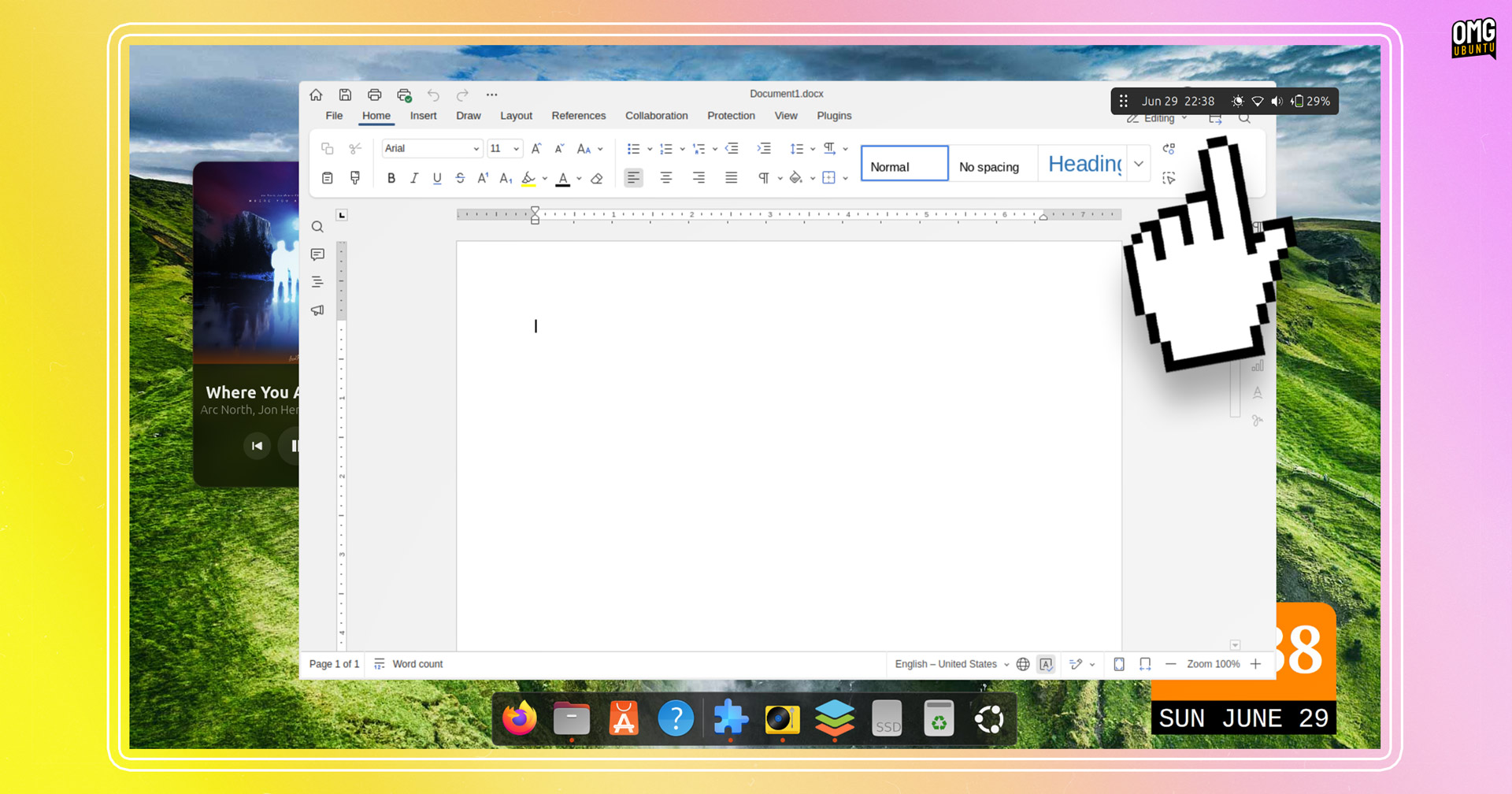
The Floating Mini Panel GNOME Shell Extension I wrote about recently now includes an option to automatically activate the compact, movable panel based on your workflow.
While there are a couple of caveats to how this auto-mode gets triggered, it’s an option that fits the USP of this extension extremely well. After all, it’s about getting the main panel out of your way, so having it vamoose without manual input is key to that.
To recap, the Floating Mini Panel extension replaces the full-width panel on the GNOME Shell desktop with a super compact, freely moveable and always-on-top mini panel. It only shows the Date menu and Quick Settings (no other tray icons or applets) so you aren’t distracted.
It’s toggleble; the idea is you enable mini-mode as and when you need it (such as when working full-screen) to provide an HUD-esque alternative to hiding the top panel entirely. It can be temporarily hidden by right-clicking the grab handle.
While it is not the kind of GNOME Shell UX add-on designed to appeal to everyone, for those with workflows it suits, it’s golden.
Enabling Automatic Activation
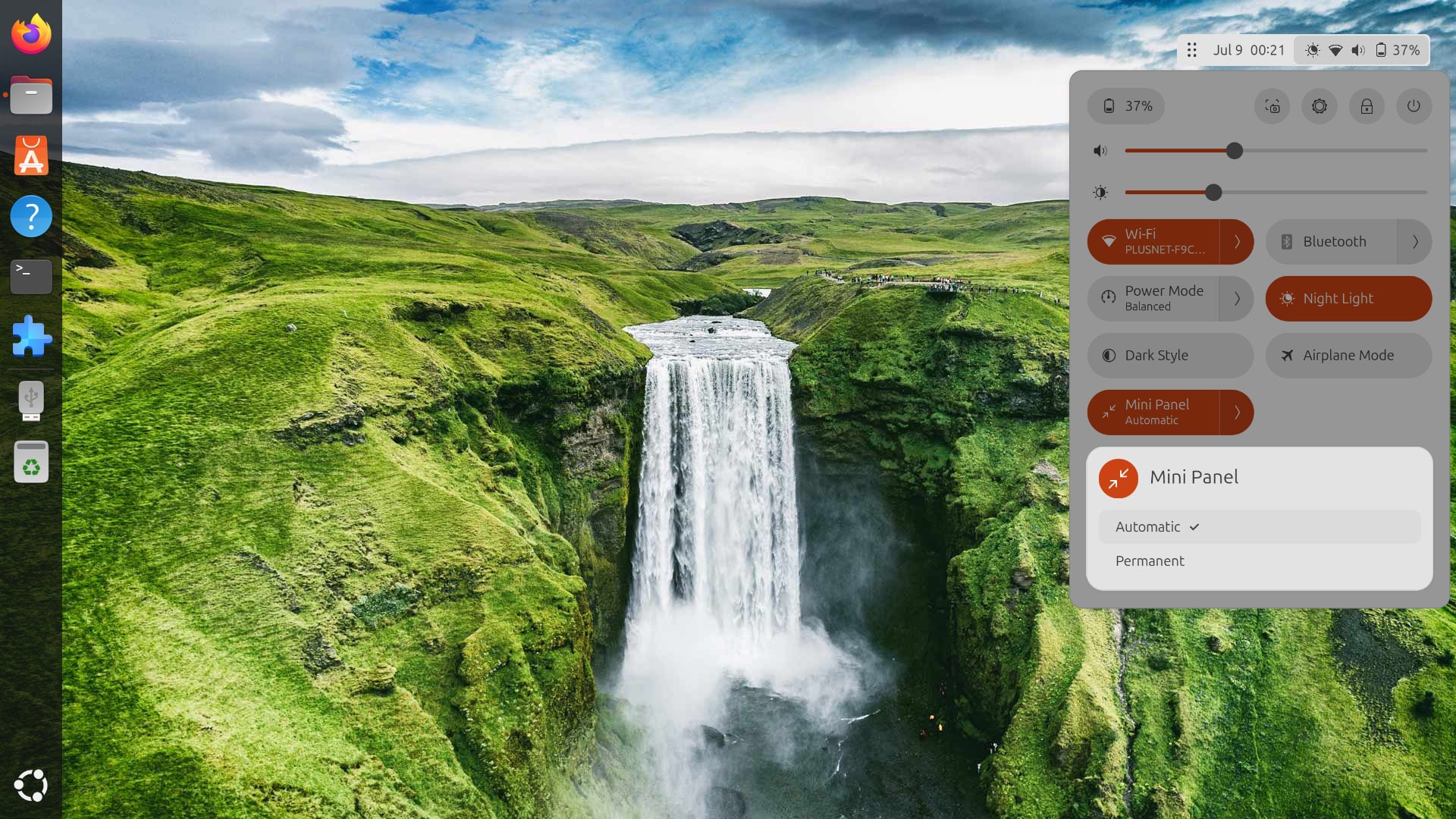
Version 3 of the the Floating Mini Panel extension (update is already available the GNOME Extensions website) introduce a sub-menu to its Quick Settings toggle. Unfurled, it shows two options: Permanent and Automatic.
Permanent is the old behaviour where mini-panel mode is on until you turn it off.
Automatic will turn on mini-panel mode any time that an application goes fullscreen:
Handy.
But if you have another GNOME extension like Hide Top Bar or Dash to Panel installed and enabled, the mini-panel mode can work with it to auto-trigger each time you maximise an application window (if Intellihide behaviour is on it will trigger whenever an app window goes near it):
In all, this is a logical addition to this simple (and per its GitHub page, surprisingly simple in how it works) redux to the traditional, fixed Top Bar in GNOME Shell.
More features are in the offing, such as options to selectively choose other panel extension icons, app indicators, etc to show; a middle-click action on the handle button; and support for scrolling over the sound icon to adjust volume, etc.
And while the stock look is pleasant enough, the developer is open to including ways to customise the appearance, such as font and icon size.
You can install the latest version of this extension from the GNOME Extensions website using the link below, but it is far easier to install using the GNOME Extensions Manager desktop app (available in the Ubuntu repos).
If you already have this extension installed, this update gets downloaded in the background and applied the next time you log in.
Get Floating Mini Panel on GNOME Extensions
Thanks Geri!