


The new Wine 11.0 release offers better-than-ever support for running Windows apps and games on Linux distributions like Ubuntu.
While it is easy to install Wine in Ubuntu using the App Center (or Ubuntu Software on older releases) or apt at the command line, the version of Wine in Ubuntu’s archives is always an older version.
To benefit from the newest features, drivers, bug fixes and compatibility tweaks you should install the latest stable Wine release on Ubuntu from the official Wine repository.
Sounds like effort? It’s not; it’s easy to add the official repo on Ubuntu. Just follow the steps below (adapted from the official WineHQ Wiki to make them easier to follow), and if you hit any issues with unmet dependencies, see the troubleshooting section at the end.
Installing New Wine Releases in Ubuntu
Step 1: Enable 32-bit support
First things first: to use Wine in Ubuntu you must enable 32-bit support. While newer versions of Wine do include Wow64 (which can run 32-bit, and even 16-bit, Windows apps and games on 64-bit distros, it’s still considered a WIP).
If you are reading this article from Ubuntu then I know that you use a 64-bit build. How? Because I’m psychic—just joking: Ubuntu discontinued 32-bit builds in 2017.
Despite having a big clear out of 32-bit packages, the Ubuntu repos do contain a number of relevant 32-bit libraries and multilib dependencies needed to support the 32-bit architecture via Wine.
To enable 32-bit support in Ubuntu, open your terminal and run this command:
sudo dpkg --add-architecture i386
If you need Wine for ARM64 (e.g., Raspberry Pi) you MUST stick to the version available in the Ubuntu repos. Wine ARM is also not yet as featured or as compatible as Wine for Intel/AMD systems.
Step 2: Add the Wine Repo Keys
To install a the latest stable release of Wine in Ubuntu you need to add the official Wine Ubuntu repo.
But in order to install packages from that repo, you need to allow your system to securely communicate with it —that means importing its security key.
This bit looks more scary than it is, but you can’t skip it.
First, create a new keyring:
sudo mkdir -pm755 /etc/apt/keyrings
Second, add the official Wine repo key to it:
wget -O - https://dl.winehq.org/wine-builds/winehq.key | sudo gpg --dearmor -o /etc/apt/keyrings/winehq-archive.key -
That’s it.
Step 3: Add the Official Wine Repo
If you don’t know which version of Ubuntu you use, go and check via Settings > System > About. You will need to know which version of Ubuntu you use so that you can run the next command correctly.
If you use Ubuntu 24.04 LTS ‘Noble Numbat’ (or a flavour, spin, derivative, etc based on it, like Linux Mint 22.x), run this command:
sudo wget -NP /etc/apt/sources.list.d/ https://dl.winehq.org/wine-builds/ubuntu/dists/noble/winehq-noble.sources
If you use Ubuntu 22.04 LTS ‘Jammy Jellyfish’ (or a Linux distro based on it, like Linux Mint 21.x) you should run this command:
sudo wget -NP /etc/apt/sources.list.d/ https://dl.winehq.org/wine-builds/ubuntu/dists/jammy/winehq-jammy.sources
Only run the command with the correct codename that matches your Ubuntu version
| Ubuntu version | Codename to use |
|---|---|
| Ubuntu 20.04 LTS | focal |
| Ubuntu 25.04 | plucky |
| Ubuntu 25.10 | questing |
| Ubuntu 26.04 LTS | resolute |
Step 4: Install Wine
Now you are ready to do what you can to do: install Wine on Ubuntu!
sudo apt update && sudo apt install --install-recommends winehq-stable
When you run this command (and enter your user password to authenticate) you will be presented with a long list of packages that apt will download, install and upgrade.
In some cases you may also notice that some packages will be removed..
You must PAY ATTENTION to the list of removals; critical packages like ubuntu-desktop and xorg are sometimes be listed for removal, so don’t idly whack y to proceed. If you don’t feel comfortable with what you see listed for removal, hit n to cancel.
The good news is that on a vanilla Ubuntu system installing Wine from the official repo will usually “just work”, no conflicts. Allow everything listed ample time to download, unpack, install, and configure itself before panicking.
Once the whole process completes, close the Terminal window.
- There is no “Wine” launcher in the Applications grid after you install Wine
- Right-click on a Windows installers or runtime to open them with Wine
- Run
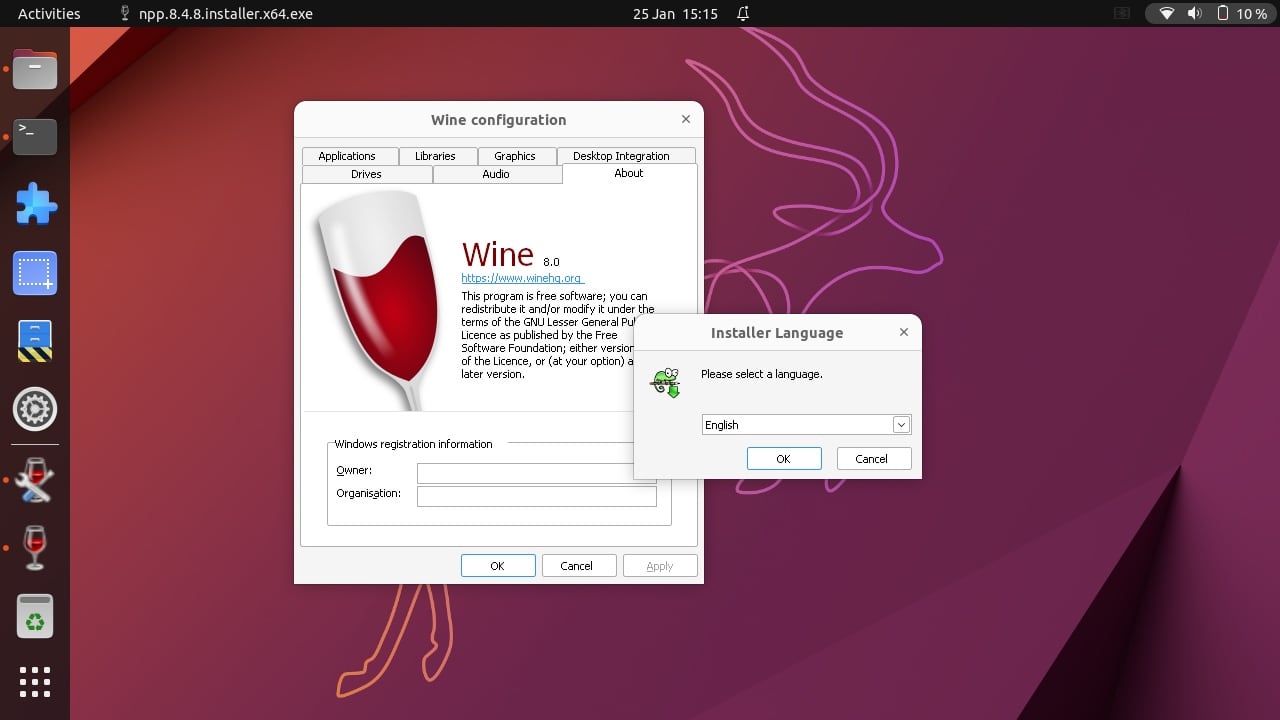
winecfgfrom the command line to access the Wine configuration tool
Unmet dependencies?
If you see an error stating winehq-stable : Depends: winehq-stable (= x.x) but it is not going to be installed, it usually means your system has a library conflict or is missing a specific 32-bit component that apt can’t resolve automatically.
The most common fix is to run the following command in your terminal. This will manually install the most frequent “offender” libraries:
sudo apt install libasound2-plugins:i386 libsdl2-2.0-0:i386 libdbus-1-3:i386 libsqlite3-0:i386
Still stuck? If you have third-party PPAs, they may provide versions of libraries that are “too new” for Wine. Try disabling the PPA or running sudo aptitude install winehq-stable to see which dependency is being held back.